
As more of life moves online, having a website has become essential for any business or personal project. Building a website on Google with Google Sites is one of the useful services Google offers. Google, one of the biggest search engines indexing the web, has long encouraged individuals and businesses to create websites easily and cheaply, and Google Sites lets them do that in a simple, effective way.
If you’re looking for an easy, effective way to create a website for your business, Google Sites may be the answer. In this article, we’ll show you how to use Google Sites step by step, and how to use Google’s tools to build a free website that fits your needs and looks professional.
Building a Website on Google: Why Choose Google Sites?
Google Sites is one of Google’s best tools for building websites and professional web pages. It offers an easy interface for anyone who wants to build a website on Google without any coding skills or experience. It lets every user build organized, attractive websites for their business, with easy customization and integration with other Google services, such as Google Drive and Google Analytics.
So what do you get when you build a website on Google with Google Sites? The main advantages are:
- Ease of use: Google Sites uses simple drag-and-drop editing, which makes design easy even for beginners. You don’t need any coding experience; just choose elements and put them where you want them.
- Integration with other Google tools: you can easily connect your website with other Google tools, such as Google Drive documents, Google Maps, Google Slides presentations and site analytics with Google Analytics. This makes your site more dynamic and easier to manage.
- It’s completely free, with no extra costs for hosting or a domain name. If you run a small business or want a personal website, this makes it an ideal choice.
- Responsive designs: Google Sites designs adapt to every screen and device, so users get the best experience on mobile phones, tablets and computers.
- Strong security: sites are hosted on Google’s servers, which keeps your data safe and protects your site from cyber threats and security holes.
- Support for many languages, including Arabic, and easy uploading of documents, images and videos.
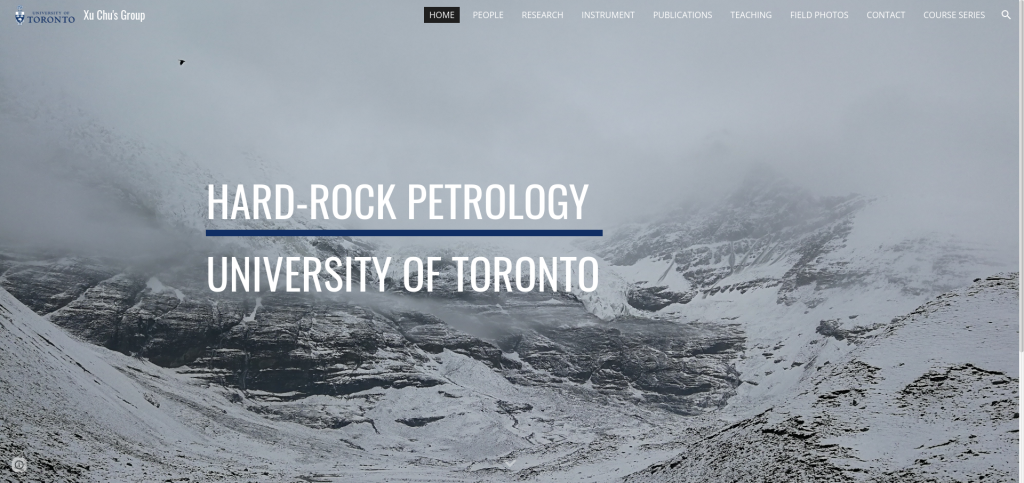
Here are some websites built with Google Sites:

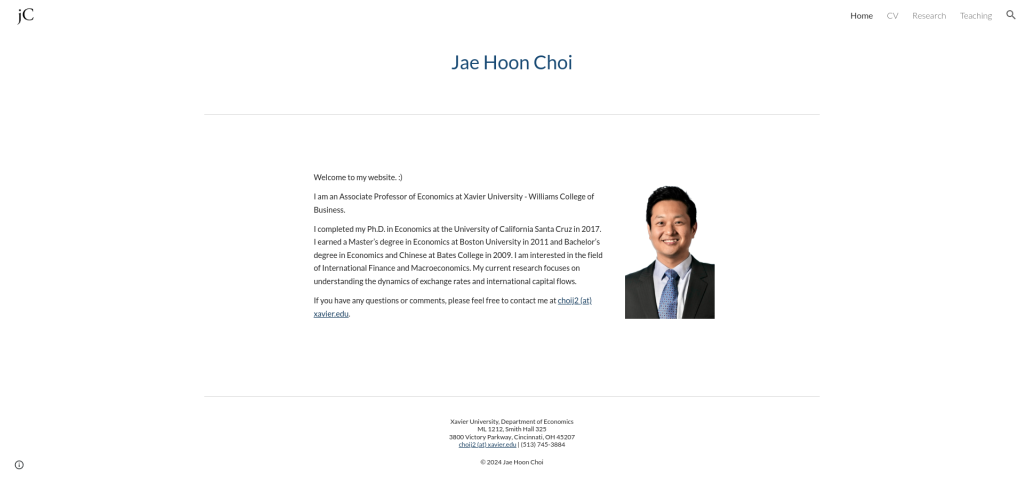

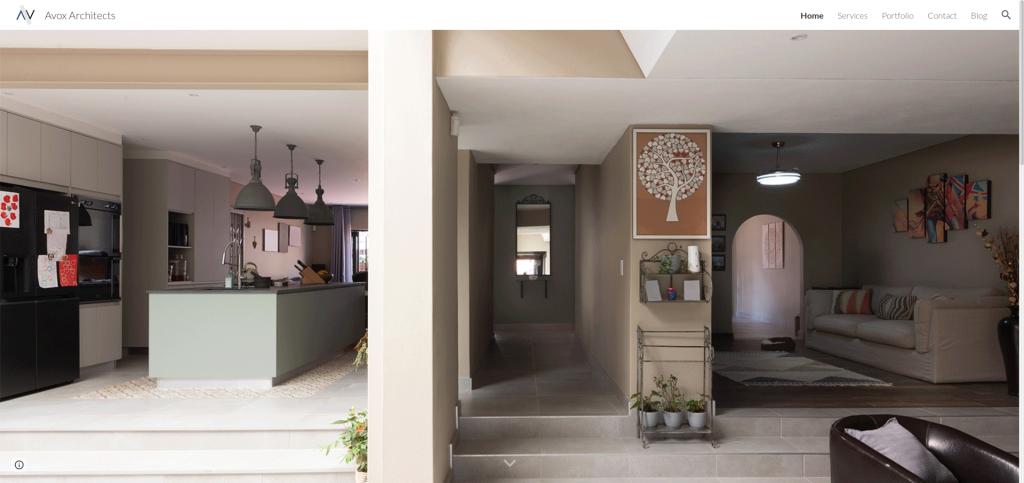
xchu.
How to Use Google Sites to Build a Website
To start building a free website on Google with Google Sites, you need an active Gmail account. If you don’t have one, you can create a new account easily, so you can access and use Google Sites.
Here are the steps to build a website on Google with Google Sites:
Step 1: Sign in to Google Sites
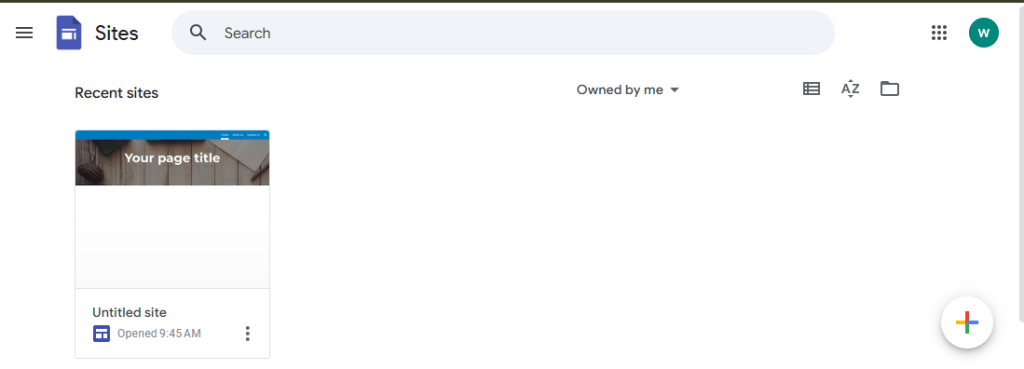
First, sign in to Google Sites with your Gmail account, then click the plus sign (+) to create a new website.
Step 2: Choose a template
Once you’re in Google Sites, you can choose from a set of ready-made templates that fit your business, or start a completely new site from scratch.
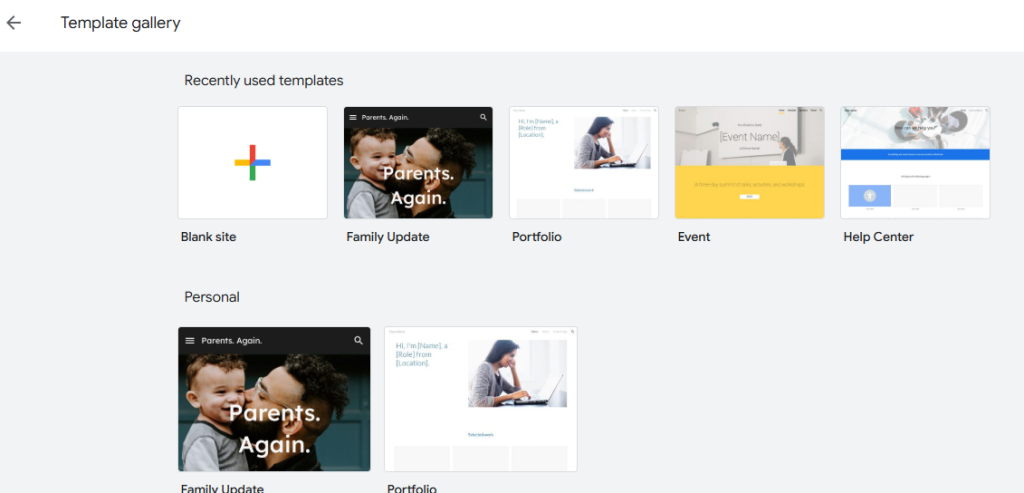
Note: templates may not be available in every interface language. If you don’t see them, switch your Google account’s language to English.
Step 3: Name your site and change the page title
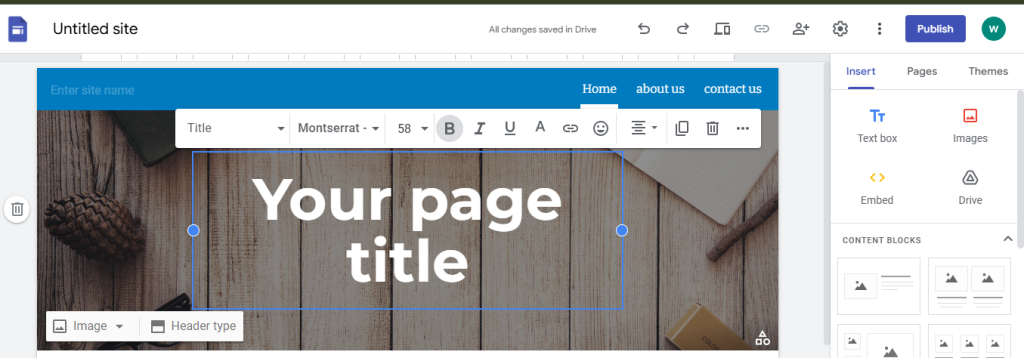
Type the name you want for your site by clicking “Untitled site,” and name it according to its main purpose, whether it’s a personal, educational or business site.
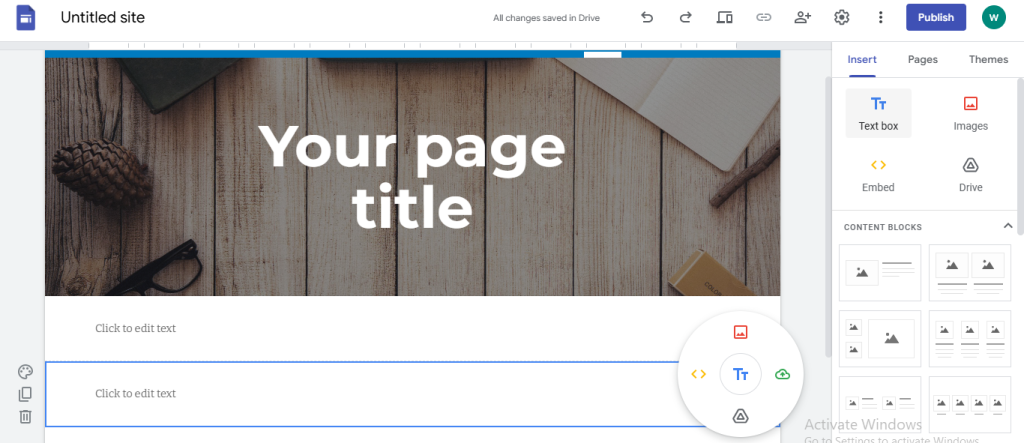
To change your homepage title, click the page title text, then change the text, font size, color and style easily.
Step 4: Set the overall look and add new pages
When building a website on Google, you need to set up several things:
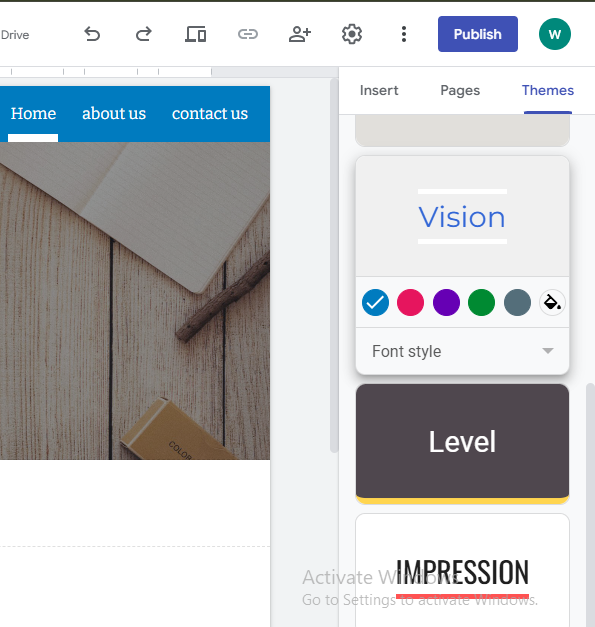
Set your site’s overall look by clicking Themes at the top right of the page. From there, you can choose the page’s overall design, change background colors and customize font styles and colors.
Add new pages to your site by clicking Pages at the top right, then clicking the plus sign (+) and entering the name of the new page. This helps you organize your content and link related pages together.
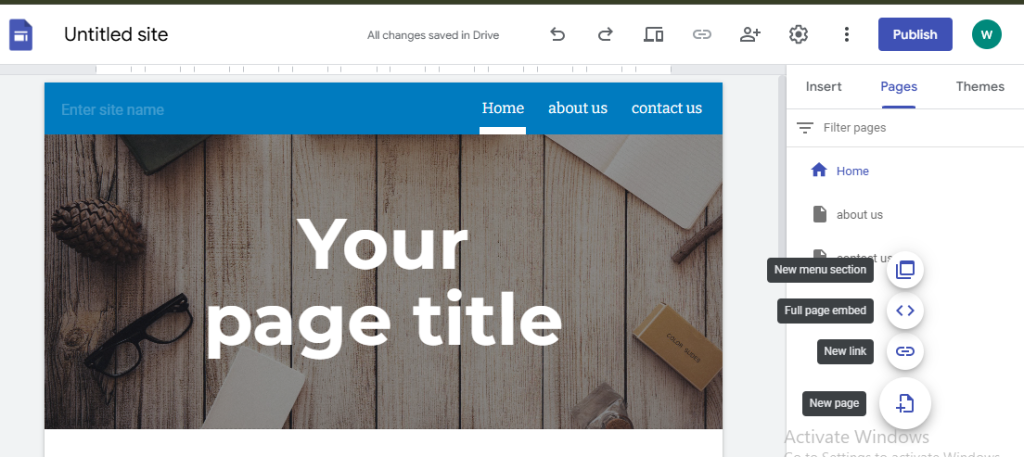
Edit the main navigation menu. Once you’ve added more than one page, visitors can use the navigation menu to reach them. The menu appears automatically at the top of the site.
To change where the navigation menu appears, click the navigation settings icon at the top left of the page, below the site name.

Step 5: Customize your site’s design
One of the best things about building a website on Google is Google Sites’ simple, easy-to-use interface, which lets anyone customize and design their site easily, whether by adding and editing content, inserting images or changing the logo.
You can add text by clicking Insert and choosing Text box, then setting the font size and style, or by double-clicking any empty part of the page to bring up a menu for adding content. Make sure your text is clear and easy to read. To upload images, also use Insert and choose images from your device.
Step 6: Preview and publish your website
When you’ve finished building your site, click the Preview icon at the top of the page to view your site and see how it looks on different devices.

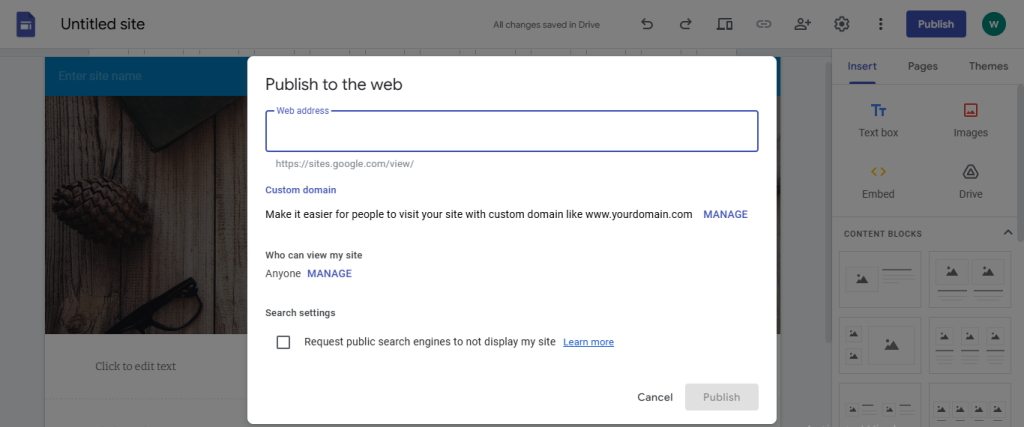
After previewing your site, publish it for the first time by clicking Publish. You’ll need to choose a web address (URL) for your site, using Latin letters.
Key Tips for Making Your Site More Professional
- Use a simple, distinctive design. Simple designs make your site look professional and help visitors find the information they need easily.
- Focus on high-quality content, and make sure your writing is clear and direct. Use language that suits your target audience, avoid spelling and grammar mistakes, and update your content regularly to keep your site visible.
- Make your site look good on mobile devices. More than 50% of users browse the internet on their phones, so always check that your site looks its best on every device with the Google Sites preview feature.
- Use interactive elements. Add high-quality videos and images to make your site more appealing, and don’t forget call-to-action (CTA) buttons, such as “Contact us” or “Sign up now,” to encourage engagement and increase your conversion rate (CRO).
The Main Uses of Google Sites
You can build a website on Google for several purposes, such as:
- Personal websites: create a site that shows your résumé or past work, with photos or videos that present your experience attractively.
- Small business websites: if you have a small business, you can build a website on Google to show your products and services, with buttons for buying or requesting more information, and use integrations with tools such as Google My Business to improve your visibility in search engines.
- Education websites: you can use Google Sites to create learning sites with courses in video form, and add links to Google Docs or presentations for a complete learning experience.
Building a website on Google with Google Sites is the ideal choice for anyone looking for the simplest, fastest way to create an attractive, effective website. Whether you need a personal, business or education site, Google Sites gives you the tools and flexibility to build a free website on Google at no cost.
What are you waiting for? Start now and make the most of Google’s tools to build a professional website. And if you need a partner to help you build your site, get in touch with the experts on the Kemetova team. We offer the best website design services, as well as SEO for your site and web hosting on top-quality servers.